NOTE: Please, make sure you have installed the latest version of your LIQUID app to enjoy the newest available features.
1) Extract the given tar file using the following command:
"tar -xvf NGraveLinuxFirmwareUpdater_1.2.1.tar.xz"
This will extract a folder "NGraveLinuxFirmwareUpdater" with 2 files: fastboot & upgrade.tar
2) Move inside the extract folder
"cd NGRAVELinuxFirmwareUpdater"
3) Put your ZERO in recovery mode using this button combination:
Press the power button twice (fast, like a double click) and keep it pressed in the 2nd time until the red LED starts blinking.
Then confirm by pressing the power button once more and hold it until the red LED stays on. This means you activated update mode.
4) Plug your ZERO into your Linux computer
5) Find your ZERO using the given fastboot
A)
Using the default fastboot to update your device your will not work
To use the local (NGRAVE) fastboot, type "./fastboot".
If you do not use "./", the linux-installed fastboot will be used instead.
i.e.:
"./fastboot" - local fastboot in NGraveLinuxFirmwareUpdater folder
"fastboot" - global default linux-installed fastboot
B)
Find the device: "./fastboot devices -l"
Your device should be listed as:
"1.0.0 fastboot usb:1-1" or "1.0.0 fastboot usb:1-0"
If you receive this error message:
"no permissions (user in plugdev group; are your udev rules wrong?); see [http://developer.android.com/tools/device.html] fastboot usb:1-1"
A solution is presented to remove this error message on the given webpage, however you need to have administrator rights.
Reach out to NGRAVE support if you need assistance with this.
Issue the command using administrator rights
"sudo ./fastboot devices -l"
Your device should be listed as
"1.0.0 fastboot usb:1-1" or "1.0.0 fastboot usb:1-0"
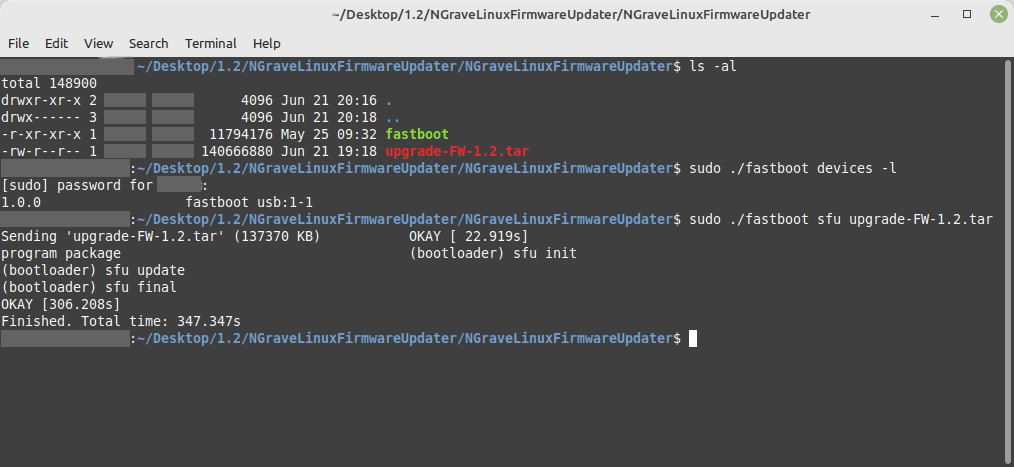
6) Update your ZERO
Issue the command
"./fastboot sfu upgrade.tar"
If the message < waiting for any device > is shown while nothing is happening, issue the command with admin rights.
"sudo ./fastboot sfu upgrade.tar"
The update should now start. This can take 5-10 minutes
7) When the update has finished, turn off your ZERO by long-pressing the button.
Then turn it on and check the firmware version in Settings >> About this device.
FAQ
FAQWhat if I don't have admin rights to my Linux machine?
For fastboot to work inherently, it needs to be ran using administrator rights
FAQHow can I get assistance from NGRAVE?
Reach out via our Discord channel or send an email to support@ngrave.io